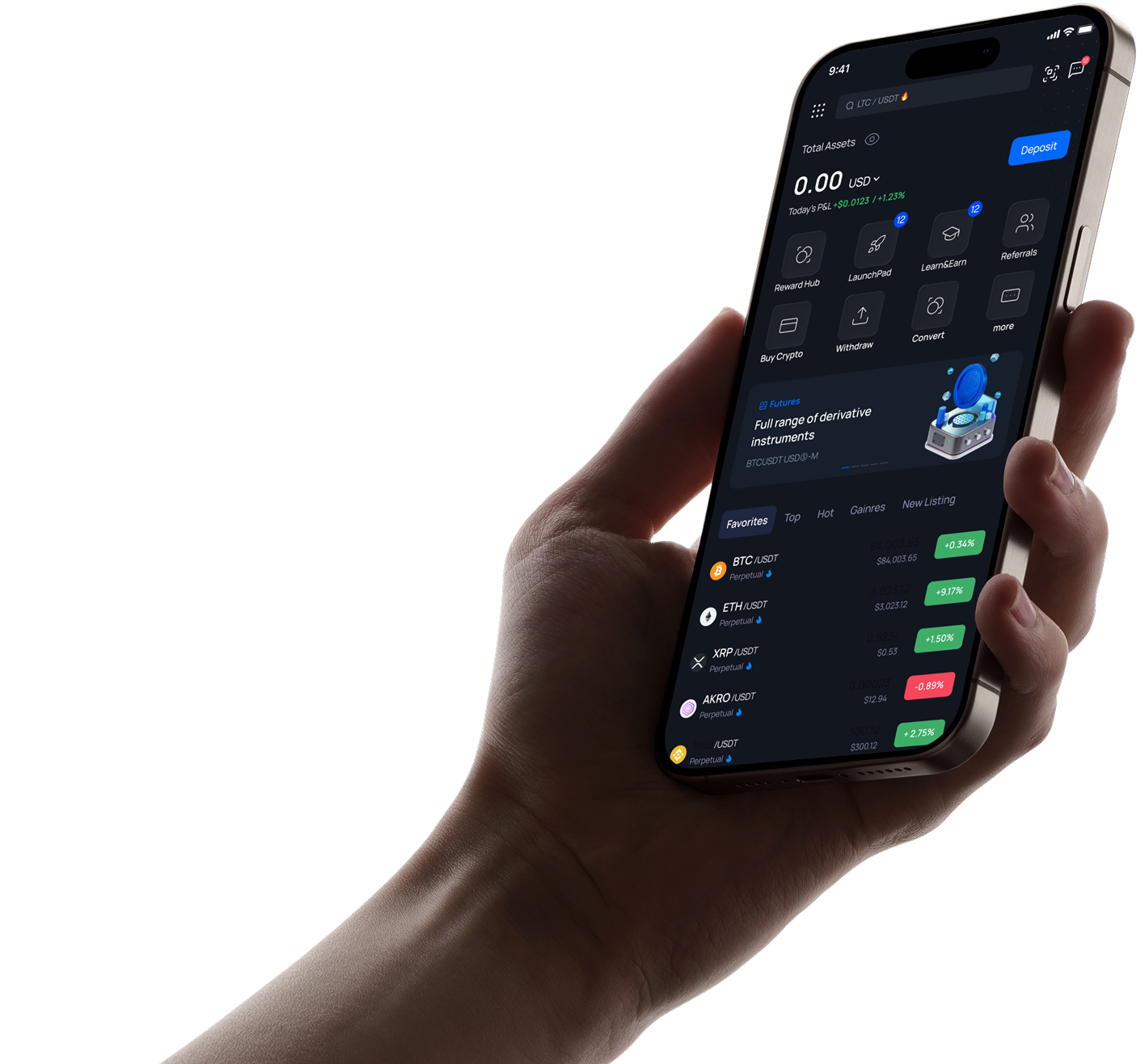
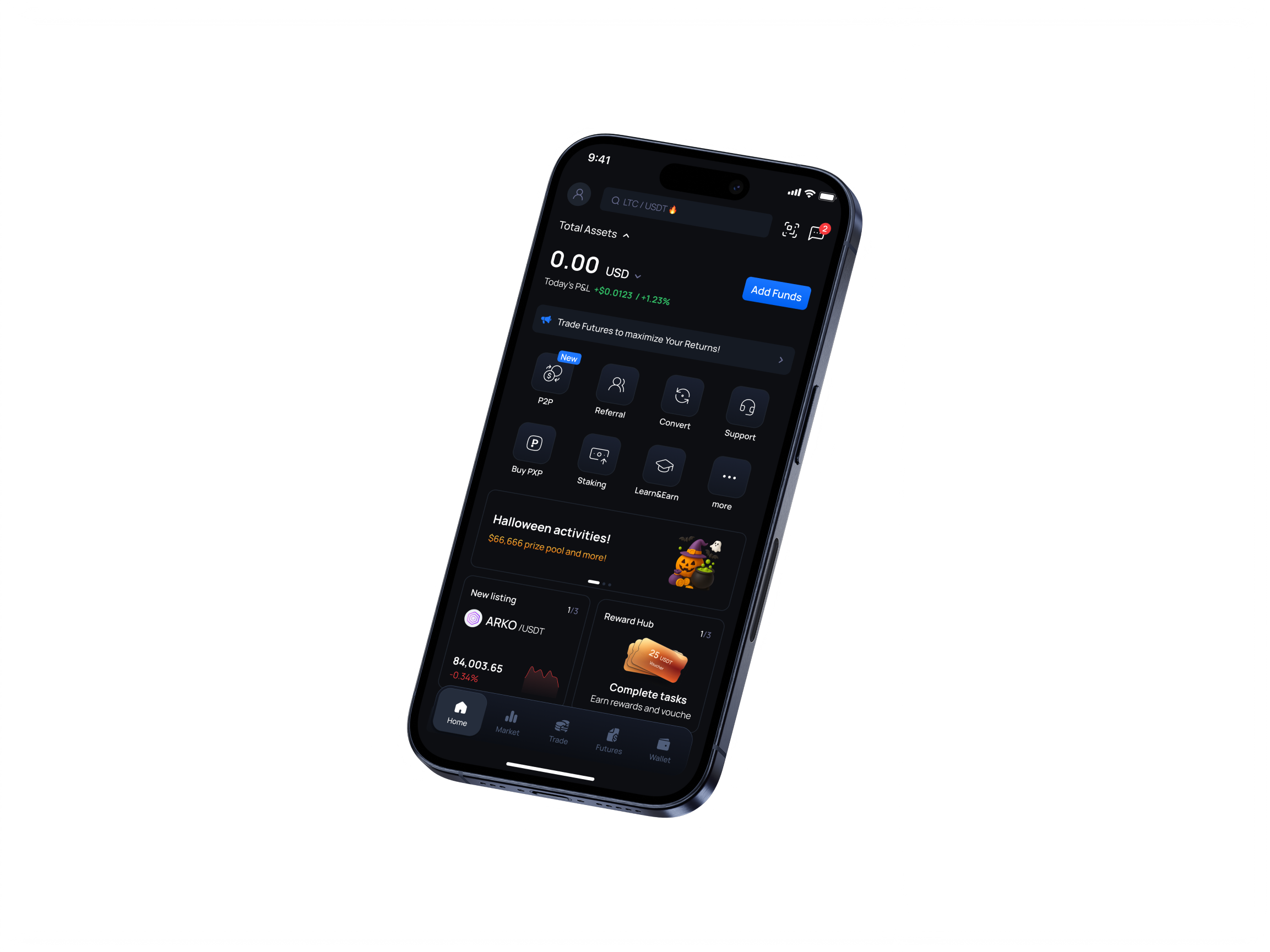
Tất cả dịch vụ tiền điện tử tại một nơi
Đăng ký ngay để bắt đầu hành trình tiền điện tử
Tiền điện tử thịnh hành
Giao dịch hơn 1.000 loại tiền điện tử trong thời gian thực.

Giữ tiền điện tử của bạn an toàn trong khi tận hưởng thu nhập thụ động với các gói APR tùy chỉnh.
Khám phá thêmNâng cao kiến thức về tiền điện tử của bạn và kiếm phần thưởng bằng cách hoàn thành các thử thách giáo dục.
Khám phá thêmNhận quyền truy cập sớm vào các dự án mới và các đợt mở bán token độc quyền ngay trên nền tảng.
Khám phá thêm

Được cộng đồng hỗ trợ. Được ngành xác minh.
Giao dịch hơn 1.000 loại tiền điện tử trong thời gian thực.FAQ
- Xác thực hai yếu tố là gì?
Chức năng xác thực hai yếu tố là một tài nguyên bổ sung cho phép bạn nhận được sự bảo vệ bổ sung đối với quyền truy cập vào tài khoản của mình, ngay cả khi ai đó biết mật khẩu của bạn. Khi đăng nhập vào tài khoản của mình, bạn sẽ được yêu cầu nhập hai thông tin: mật khẩu và mã xác thực gồm 6 chữ số. Một mã xác thực mới được tạo ra sau mỗi 30 giây bởi một ứng dụng xác thực. Chúng tôi đặc biệt khuyến nghị tất cả người dùng của mình bật tính năng bảo mật này để ngăn chặn mọi truy cập trái phép tiềm ẩn vào tài khoản của bạn. Chức năng này là cần thiết để đảm bảo an toàn cho tài sản của bạn, vì vậy hãy dành thời gian để thiết lập nó càng sớm càng tốt!
- Tôi nên làm gì nếu bị mất mã/khóa xác thực hai yếu tố?
Bạn cần cung cấp dữ liệu KYC, thông tin đăng nhập tài khoản, cũng như dữ liệu về các khoản tiền gửi và rút tiền mới nhất.
- How to enable Google 2FA
How to enable Google 2FA
Log into your account. In the Profile menu click on the «Security»

Choose Two-Factor Authentication section
You’ll see a 2FA enabling page with codes in two forms: usual and QR-code.
Attention: please, save this code in a safe place. This will allow you to recover your Google Authenticator if you lose access to your phone or app.

Open the 2FA app on your mobile device.
You can use a scanner or enter code manually to add temporary code for PointPay in your app.
Press on «+» in the bottom right corner:

Then tap on «Scan QR-code» or «Enter key manually». After it is done, a new 6-digits code appears in your app.
Put it in the 2FA enabling page:

You’ll get a notification that 2FA is enabled now.

Done, your account is secured now.
- My four digit pin is lost/incorrect, what can I do?
You can delete the app and install it again with a new 4 digit code.
- How to pass KYC using Android app?
Android KYC
In order to complete KYC verification using Android App, please follow the next steps:
1) Log into your account. On the main app page please press on your profile name in the top left corner:

2) Tap on your Profile ID. You can also see the «Unverified» status there.

3) Press on «Verify» button in the verification section:

4) Choose the country of your current citizenship, use the drop list or filter by name.

Please, note that the United States of America (USA, United States) is shortened in the list and named just US.
5) Fill in your personal information:

Check the information – it must be filled correctly, as is in your documents:
- Name – right as in the document;
- Birth date – in dd/mm/yyyy format;
- Gender – is the same as indicated on your document, not according to your self-identification.
6) Fill the information about your address:

In case the address where you currently stay does not match your registration address, please take off the check box «The address matches the registration address» and fill it in as well.
7) Choose the document from the list, which you are going to use for verification of your identity.
International passport will be suitable for citizens of all countries.
You can also use other documents if they comply with international standards.; recommendations regarding a particular country can be obtained from customer support.

Requirements for the documents photo:
- A valid and unexpired passport, national ID, or driver’s license depending on your applicable country.
- Please make sure that the pictures of your documents are clear, hi-res, show all their corners and sides, and no information is covered.
- Please note that screenshots, photos of document copies, and images altered in photo redactors are not acceptable.
- It is recommended that you upload an ID with a photo that resembles your most recent facial features.
- If your ID document has a signature field, please make sure it is signed.
8) Please submit your selfie verification.

Here are some tips for you:
- please make sure that your face is good lighted directly from the front side and not from the sides
- follow the guidelines on the screen
Attention: Make sure there are no other people or photos with your face in the frame. It is preferable that the background be clear. It is also necessary to ensure a sufficient level of lighting.
Follow the tips on the screen.
9) After the selfie will be submitted, you'll see the message «In progress»

It might take some time to process your request so please wait a little for the result.
10) After your verification will be approved or disapproved, you’ll receive the result of processing the application via email.
The example of email with approve:

11) For some reasons application may be disapproved, in this case please, try again:

If you meet any difficulties, please contact our customer service: support@pointpay.io or use online-chat on the site.
- How to pass KYC via iOS app
KYC via iOS app
To pass KYC verification via iOS app, please follow the steps mentioned below:
1) On the main app page please press on your profile name (placed in the top left corner of the screen)
2) Tap on your Profile ID.jpg)
3) Press on «Verify» button in the middle of the screen

4) Choose the country the citizenship of which you currently possess
.jpg)
Use the drop list or filter by name.
Please, note that the United States of America (USA, United States) is shortened in the list and named just US.
5) Fill in your personal information..jpg)
Check the information – it must be filled correctly, as is in your documents:
Name – right as in the document;
Birth date – in dd/mm/yyyy format;
Gender – is the same as indicated on your document, not according to your self-identification.
6) Enter your registration address.
In case the address where you currently stay does not match your registration address, please fill it in as well.
.jpg)
7) Choose the type of the document you will submit for KYC verification.

International passport will be suitable for citizens of all countries.
You can also use other documents if they comply with international standards.; recommendations regarding a particular country can be obtained from customer support.
Requirements for the documents photo:
- A valid and unexpired passport, national ID, or driver’s license depending on your applicable country.
- Please make sure that the pictures of your documents are clear, hi-res, show all their corners and sides, and no information is covered.
- Please note that screenshots, photos of document copies, and images altered in photo redactors are not acceptable.
- It is recommended that you upload an ID with a photo that resembles your most recent facial features.
If your ID document has a signature field, please make sure it is signed.
8) Please submit your selfie verification..jpg)
Here are some tips for you:
- please make sure that your face is good lighted directly from the front side and not from the sides
- follow the guidelines on the screen
Attention: Make sure there are no other people or photos with your face in the frame. It is preferable that the background be clear. It is also necessary to ensure a sufficient level of lighting.
Follow the tips on the screen.
After the selfie will be submitted, you'll see the message «Processing»
9) In several cases, it might take some time for our system to process your request..jpg)
10) After your verification will be approved or disapproved, you'll receive notification letter on your email.
Below you can see an example of KYC approval..jpg)
In case it will be denied, please contact our Customer Support Team via live chat or email support@pointpay.io
- How to pass KYC via web interface
How to pass KYC in the web-interface
1. Log into your account:

2. Then go to Dashboard menu:

Click on the «Verify» button at the top of the page.

3. Verification procedure will be started. First step is entering personal information, e.g. First name, Last name, gender, birth date. Please, fill all mandatory fields properly.
To choose your country please use the drop list or filter by name.
Please, note that the United States of America (USA, United States) is shortened in the list and named just US.
Check the information and click the «Next» button.
4. On the second step it is necessary to provide the information about your Residence and registration addresses.

In case if addresses not matches, take off tick box and fill necessary information:

Click «Next»
5. Choose the document from the drop list, which you are going to use for verification of your identity.

The list of available documents may be different depending on your country of residence. Usually we accept passports, ID cards, Driver’s licenses.
System will require uploading 1 or 2 pages of documents, for different document types.
Just follow the instructions.

Requirements for the documents photo:
A valid and unexpired passport, national ID, or driver’s license depending on your applicable country.
Please make sure that the pictures of your documents are clear, hi-res, show all their corners and sides, and no information is covered.
Please note that screenshots, photos of document copies, and images altered in photo redactors are not acceptable.
It is recommended that you upload an ID with a photo that resembles your most recent facial features.
If your ID document has a signature field, please make sure it is signed.6. Final step is face recognition. Please, grant your browser permission to use your device's camera. Otherwise you will not be able to complete this step.

Attention: Make sure there are no other people or photos with your face in the frame. It is also necessary to ensure a sufficient level of lighting.
Follow the tips on the screen.When each sector is done, it changes color to green. After completing this step your application will be accepted and you see the following notification:

Processing takes some time, so please wait for a while. You’ll receive the result of processing the application via email.
The example of email with approve:

For some reasons application may be disapproved, in this case please, try again:

If you meet any difficulties, please contact our customer service: support@pointpay.io or use online-chat on the site.
- KYC / AML / Regulatory requests
We are ensuring compliance with the latest regulations and improved standards for KYC verification, introduced in Europe.
Our current KYC system incorporates essential data compliance and technical security enhancements.
KYC verification is required for following operations:
- sell/buy crypto with fiat
- withdrawals to external wallets
- internal transfers within PointPay platform
To pass KYC verification it will be necessary to:
- submit the photo of an international passport or some other identity document which fits international standards.
The list of the documents could be diverse depending on the country.
In case any additional questions will occur, please don`t hesitate to contact our Сustomer Support Team, and they will be glad to suggest you other types of the documents, which can be accepted from the citizens of your country.
pass selfie verification.
Once you successfully complete the verification process, you will continue to enjoy the full range of services offered by the PointPay platform.
- How to disable 2FA
- Log into your account
- In the Profile menu click on the «Security»
- Choose Two-Factor Authentication section
You’ll see 2FA «Disable» button.
- Open the 2FA app on your mobile device.
Now enter the code from app in the field and click «Disable»
You’ll get a notification that 2FA is disabled now.
However, we strongly recommend to keep 2FA always enabled for more safety of your funds. - What documents can I use to verify my account?
What documents can I use to verify my account?
Dear users! We noticed that one of the most common reasons for unsuccessful verifications is the use of inappropriate documents. This material is intended to simplify the process of verifying your account. Below we have compiled a current list of documents that are accepted by the verification system, broken down by countries.
Before you begin verification, search for your country by name and you will see exactly which documents are acceptable.
Country (code): documents
Albania (AL): passport
Algeria (DZ): passport, ID card
Argentina (AR): passport, DNI
Armenia (AM): passport
Australia (AU): passport
Austria (AT): passport, residence permit
Azerbaijan (AZ): passport, ID card
Bahrain (BH): passport
Bangladesh (BD): passport, ID card (see example)
Belarus (BY): passport
Belgium (BE): passport, ID card, residence permit
Benin (BJ): passport, ID card
Bosnia and Herzegovina (BA): passport
Brazil (BR): passport, ID card (examples of supported types: doc 1 / doc 2 / doc 3; the document must be issued no more than 10 years ago and must contain an CPF code), residence permit
Brunei Darussalam (BN): passport
Bulgaria (BG): passport, ID card
Burkina Faso (BF): passport, ID card
Butane (BT): passport
Cambodia (KH): passport
Cameroon (CM): passport
Canada (CA): passport, driver’s license
Chad (TD): passport
Chile (CL): passport
China (CN): passport
Colombia (CO): passport, temporary protection permit
Croatia (HR): passport, ID card
Cuba (CU): passport
Czech (CZ): passport, ID card
Denmark (DK): passport
Dominica (DM): passport
Dominican Republic (DO): passport, ID card
Ecuador (EC): passport
Egypt (EG): passport
Estonia (EE): passport, ID card
Finland (FI): passport
France (FR): passport, ID card, residence permit
Georgia (GE): passport, ID card
Germany (DE): passport, ID card, residence permit
Ghana (GH): passport, ID card
Great Britain (GB): passport, driver’s license
Greece (GR): passport, ID card (new type: front side / back side examples), residence permit
Grenada (GD): passport
Haiti (HT): passport
Honduras (HN): passport, ID card
Hong Kong (HK): passport
Hungary (HU): passport, ID card
India (IN): passport
Indonesia (ID): passport
Ireland (IE): passport, residence permit
Israel (IL): passport
Italy (IT): passport, ID card example of supported type: front side / back side)
Ivory Coast (CI): passport, ID card
Jamaica (JM): passport
Japan (JP): passport
Jordan (JO): passport, ID card
Kazakhstan (KZ): passport, ID card
Kenya (KE): passport, ID card
Kuwait (KW): passport, ID card
Kyrgyzstan (KG): passport, ID card
Latvia (LV): passport, ID card
Lebanon (LB): passport
Liberia (LR): passport
Lithuania (LT): passport
Luxembourg (LU): passport
Macedonia (MK): passport
Malaysia (MY): passport
Maldives (MV): passport
Mali (ML): passport
Malta (MT): passport, residence card/document
Mexico (MX): passport, voter’s card
Monaco (MC): passport, ID card
Mongolia (MN): passport
Montenegro (ME): passport, ID card
Morocco (MA): passport, ID card
Mozambique (MZ): passport
Namibia (NA): passport
Nepal (NP): passport
Netherlands (NL): passport, ID card
Nigeria (NG): passport, driver’s license
Norway (NO): passport, ID card
Oman (OM): passport, residence card/document
Palestine (PS): passport
Paraguay (PY): passport
Peru (PE): passport, DNI
Philippines (PH): passport, ID card (new type: example)
Poland (PL): passport, ID card
Portugal (PT): passport, citizen card
Qatar (QA): passport
RF (RU): passport
Romania (RO): passport, ID card
Salvador (SV): passport, ID card
Saudi Arabia (SA): passport, ID card
Senegal (SN): passport, ID card
Serbia (RS): passport
Singapore (SG): passport
Slovakia (SK): passport, ID card
Slovenia (SI): passport, ID card
South Africa (ZA): passport, ID card
South Korea (KR): passport
Spain (ES): passport, DNI, residence permit
Sri Lanka (LK): passport
Suriname (SR): passport
Sweden (SE): passport
Switzerland (CH): passport, ID card, residence permit
Tajikistan (TJ): passport
Tanzania (TZ): passport
Thailand (TH): passport
Togo (TG): passport, ID card
Trinidad and Tobago (TT): passport
Tunisia (TN): passport
Türkiye (TR): passport, ID card
Uganda (UG): passport, ID card
Ukraine (UA): passport, ID card
United Arab Emirates (AE): passport, ID card
USA (US): passport, ID card
Uzbekistan (UZ): passport
Venezuela (VE): passport
Vietnam (VN): passport, ID card
Zimbabwe (ZW): passport


Trustpilot