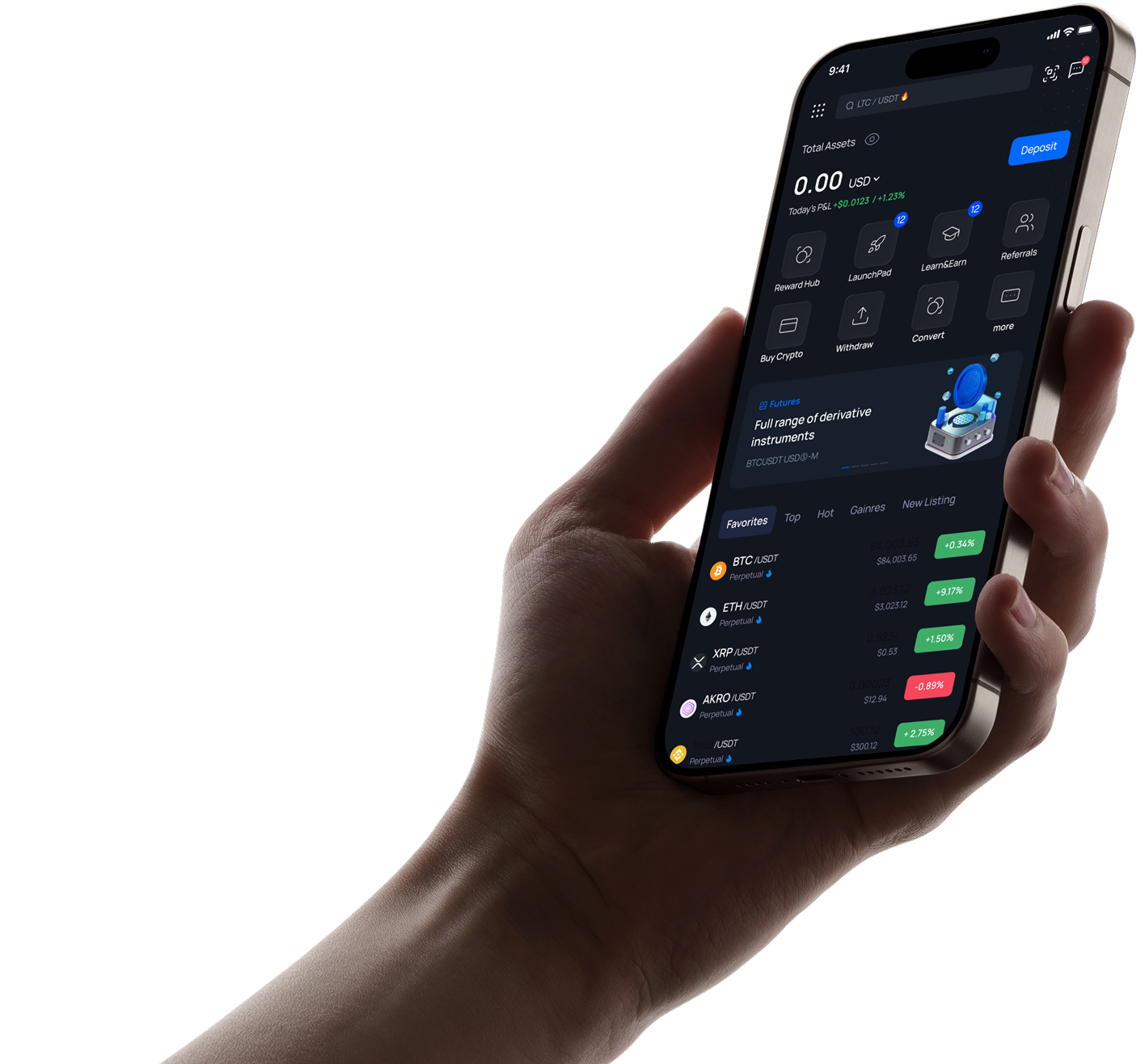
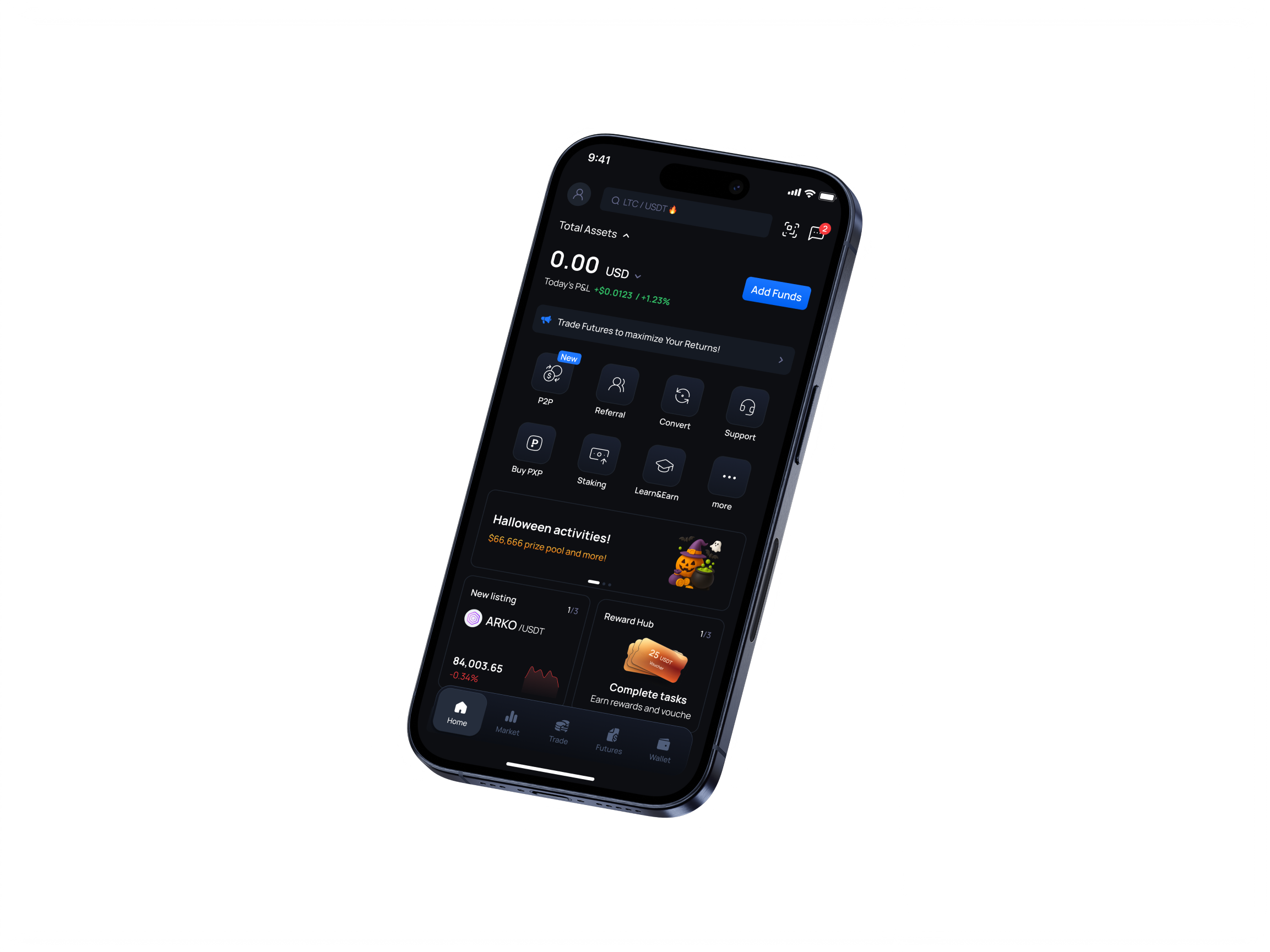
Все крипто-услуги в одном месте
Зарегистрируйтесь сейчас, чтобы начать свое крипто-путешествие
Популярные криптовалюты
Торгуйте 200+ криптовалют в реальном времени.

Храните свою крипту в безопасности, получая пассивный доход с гибкими планами APR.
Узнать большеУлучшайте свои знания о крипте и получайте вознаграждения, выполняя обучающие задания.
Узнать большеПолучите ранний доступ к новым проектам и эксклюзивным продажам токенов прямо на платформе.
Узнать больше

При поддержке сообщества. Проверено индустрией.
Торгуйте 200+ криптовалют в реальном времени.FAQ
- Что такое двухфакторная аутентификация?
Функция двухфакторной аутентификации - это ресурс, который позволяет получить дополнительную защиту доступа к вашей учетной записи, даже если кто-то знает ваш пароль. Когда вы входите в свою учетную запись, вам будет предложено ввести две части информации: ваш пароль и 6-значный код аутентификации. Новый код аутентификации генерируется приложением аутентификации каждые 30 секунд. Мы настоятельно рекомендуем всем нашим пользователям включить эту функцию безопасности, чтобы предотвратить любой потенциальный несанкционированный доступ к вашим учетным записям. Эта функция необходима для обеспечения безопасности ваших активов, поэтому, пожалуйста, найдите время, чтобы настроить ее как можно скорее!
- Что делать, если я потерял код/ключ для двухфакторной аутентификации?
Вам необходимо предоставить верификационные данные, логин учетной записи, а также данные о последних депозитах и снятии средств.
- Как включить Google 2FA
Войдите в свою учетную запись. В меню «Профиль» нажмите «Безопасность».

Выберите раздел «Двухфакторная аутентификация»
Вы увидите страницу включения 2FA с кодами в двух формах: обычном и QR-коде.
Внимание: пожалуйста, сохраните этот код в надежном месте. Это позволит вам восстановить Google Authenticator, если вы потеряете доступ к своему телефону или приложению.

Откройте приложение 2FA на своем мобильном устройстве.
Вы можете использовать сканер или ввести код вручную, чтобы добавить временный код для PointPay в свое приложение.
Нажмите на «+» в правом нижнем углу:

Затем нажмите «Сканировать QR-код» или «Ввести ключ вручную». После этого в вашем приложении появится новый шестизначный код.
Поместите это на страницу включения 2FA:
Вы получите уведомление о том, что 2FA включена.

Готово, ваша учетная запись теперь защищена.
- Мой четырехзначный PIN-код утерян/неверен. Что мне делать?
Вы можете удалить приложение и установить его снова, используя новый 4-значный код.
- Как пройти KYC с помощью приложения для Android?
In order to complete KYC verification using Android App, please follow the next steps:
1) Log into your account. On the main app page please press on your profile name in the top left corner:

2) Tap on your Profile ID. You can also see the «Unverified» status there.

3) Press on «Verify» button in the verification section:

4) Choose the country of your current citizenship, use the drop list or filter by name.

Please, note that the United States of America (USA, United States) is shortened in the list and named just US.
5) Fill in your personal information:

Check the information – it must be filled correctly, as is in your documents:
- Name – right as in the document;
- Birth date – in dd/mm/yyyy format;
- Gender – is the same as indicated on your document, not according to your self-identification.
6) Fill the information about your address:

In case the address where you currently stay does not match your registration address, please take off the check box «The address matches the registration address» and fill it in as well.
7) Choose the document from the list, which you are going to use for verification of your identity.
International passport will be suitable for citizens of all countries.
You can also use other documents if they comply with international standards.; recommendations regarding a particular country can be obtained from customer support.

Requirements for the documents photo:
- A valid and unexpired passport, national ID, or driver’s license depending on your applicable country.
- Please make sure that the pictures of your documents are clear, hi-res, show all their corners and sides, and no information is covered.
- Please note that screenshots, photos of document copies, and images altered in photo redactors are not acceptable.
- It is recommended that you upload an ID with a photo that resembles your most recent facial features.
- If your ID document has a signature field, please make sure it is signed.
8) Please submit your selfie verification.

Here are some tips for you:
- please make sure that your face is good lighted directly from the front side and not from the sides
- follow the guidelines on the screen
Attention: Make sure there are no other people or photos with your face in the frame. It is preferable that the background be clear. It is also necessary to ensure a sufficient level of lighting.
Follow the tips on the screen.
9) After the selfie will be submitted, you'll see the message «In progress»

It might take some time to process your request so please wait a little for the result.
10) After your verification will be approved or disapproved, you’ll receive the result of processing the application via email.
The example of email with approve:

11) For some reasons application may be disapproved, in this case please, try again:

If you meet any difficulties, please contact our customer service: support@pointpay.io or use online-chat on the site.
- Как пройти KYC через приложение iOS?
To pass KYC verification via iOS app, please follow the steps mentioned below:
1) On the main app page please press on your profile name (placed in the top left corner of the screen)
2) Tap on your Profile ID.jpg)
3) Press on «Verify» button in the middle of the screen

4) Choose the country the citizenship of which you currently possess
.jpg)
Use the drop list or filter by name.
Please, note that the United States of America (USA, United States) is shortened in the list and named just US.
5) Fill in your personal information..jpg)
Check the information – it must be filled correctly, as is in your documents:
Name – right as in the document;
Birth date – in dd/mm/yyyy format;
Gender – is the same as indicated on your document, not according to your self-identification.
6) Enter your registration address.
In case the address where you currently stay does not match your registration address, please fill it in as well.
.jpg)
7) Choose the type of the document you will submit for KYC verification.

International passport will be suitable for citizens of all countries.
You can also use other documents if they comply with international standards.; recommendations regarding a particular country can be obtained from customer support.
Requirements for the documents photo:
- A valid and unexpired passport, national ID, or driver’s license depending on your applicable country.
- Please make sure that the pictures of your documents are clear, hi-res, show all their corners and sides, and no information is covered.
- Please note that screenshots, photos of document copies, and images altered in photo redactors are not acceptable.
- It is recommended that you upload an ID with a photo that resembles your most recent facial features.
If your ID document has a signature field, please make sure it is signed.
8) Please submit your selfie verification..jpg)
Here are some tips for you:
- please make sure that your face is good lighted directly from the front side and not from the sides
- follow the guidelines on the screen
Attention: Make sure there are no other people or photos with your face in the frame. It is preferable that the background be clear. It is also necessary to ensure a sufficient level of lighting.
Follow the tips on the screen.
After the selfie will be submitted, you'll see the message «Processing»
9) In several cases, it might take some time for our system to process your request..jpg)
10) After your verification will be approved or disapproved, you'll receive notification letter on your email.
Below you can see an example of KYC approval..jpg)
In case it will be denied, please contact our Customer Support Team via live chat or email support@pointpay.io
- Как пройти KYC через веб-интерфейс?
1. Log into your account:

2. Then go to Dashboard menu:

Click on the «Verify» button at the top of the page.

3. Verification procedure will be started. First step is entering personal information, e.g. First name, Last name, gender, birth date. Please, fill all mandatory fields properly.
To choose your country please use the drop list or filter by name.
Please, note that the United States of America (USA, United States) is shortened in the list and named just US.
Check the information and click the «Next» button.
4. On the second step it is necessary to provide the information about your Residence and registration addresses.

In case if addresses not matches, take off tick box and fill necessary information:

Click «Next»
5. Choose the document from the drop list, which you are going to use for verification of your identity.

The list of available documents may be different depending on your country of residence. Usually we accept passports, ID cards, Driver’s licenses.
System will require uploading 1 or 2 pages of documents, for different document types.
Just follow the instructions.

Requirements for the documents photo:
A valid and unexpired passport, national ID, or driver’s license depending on your applicable country.
Please make sure that the pictures of your documents are clear, hi-res, show all their corners and sides, and no information is covered.
Please note that screenshots, photos of document copies, and images altered in photo redactors are not acceptable.
It is recommended that you upload an ID with a photo that resembles your most recent facial features.
If your ID document has a signature field, please make sure it is signed.6. Final step is face recognition. Please, grant your browser permission to use your device's camera. Otherwise you will not be able to complete this step.

Attention: Make sure there are no other people or photos with your face in the frame. It is also necessary to ensure a sufficient level of lighting.
Follow the tips on the screen.When each sector is done, it changes color to green. After completing this step your application will be accepted and you see the following notification:

Processing takes some time, so please wait for a while. You’ll receive the result of processing the application via email.
The example of email with approve:

For some reasons application may be disapproved, in this case please, try again:

If you meet any difficulties, please contact our customer service: support@pointpay.io or use online-chat on the site.
- KYC/AML/Запросы регуляторов
Мы обеспечиваем соблюдение новейших правил и улучшенных стандартов проверки KYC, введенных в Европе.
Наша текущая система KYC включает в себя важные улучшения в области обеспечения соответствия данных и технической безопасности.
Проверка KYC необходима для следующих операций:
продать/купить криптовалюту за фиат
вывод на внешние кошельки
внутренние переводы внутри платформы PointPay
Для прохождения KYC-верификации необходимо:
предоставить фотографию загранпаспорта или другого документа, удостоверяющего личность, соответствующего международным стандартам.
Список документов может быть разным в зависимости от страны.
В случае возникновения дополнительных вопросов, пожалуйста, обращайтесь в нашу службу поддержки клиентов, и они будут рады предложить вам другие типы документов, которые можно принять от граждан вашей страны.
пройти селфи-верификацию.
После успешного завершения процесса проверки вы продолжите пользоваться полным спектром услуг, предлагаемых платформой PointPay. - Как отключить 2FA
- Войдите в свой аккаунт
- В меню «Профиль» нажмите «Безопасность».
- Выберите раздел «Двухфакторная аутентификация».
Вы увидите кнопку «Отключить» 2FA. - Откройте приложение 2FA на своем мобильном устройстве.
Теперь введите код из приложения в поле и нажмите «Отключить».
Вы получите уведомление о том, что 2FA отключена.
Однако мы настоятельно рекомендуем всегда включать 2FA для большей безопасности ваших средств.
- Какие документы я могу использовать для подтверждения своего аккаунта?
Уважаемые пользователи! Мы заметили, что одной из самых частых причин неудачных проверок является использование неподходящих документов. Данный материал призван упростить процесс верификации вашего аккаунта. Ниже мы составили актуальный список документов, принимаемых системой проверки, с разбивкой по странам.
Прежде чем начать проверку, найдите свою страну по названию, и вы точно увидите, какие документы принимаются.Country (code): documents
Albania (AL): passport
Algeria (DZ): passport, ID card
Argentina (AR): passport, DNI
Armenia (AM): passport
Australia (AU): passport
Austria (AT): passport, residence permit
Azerbaijan (AZ): passport, ID card
Bahrain (BH): passport
Bangladesh (BD): passport, ID card (see example)
Belarus (BY): passport
Belgium (BE): passport, ID card, residence permit
Benin (BJ): passport, ID card
Bosnia and Herzegovina (BA): passport
Brazil (BR): passport, ID card (examples of supported types: doc 1 / doc 2 / doc 3; the document must be issued no more than 10 years ago and must contain an CPF code), residence permit
Brunei Darussalam (BN): passport
Bulgaria (BG): passport, ID card
Burkina Faso (BF): passport, ID card
Butane (BT): passport
Cambodia (KH): passport
Cameroon (CM): passport
Canada (CA): passport, driver’s license
Chad (TD): passport
Chile (CL): passport
China (CN): passport
Colombia (CO): passport, temporary protection permit
Croatia (HR): passport, ID card
Cuba (CU): passport
Czech (CZ): passport, ID card
Denmark (DK): passport
Dominica (DM): passport
Dominican Republic (DO): passport, ID card
Ecuador (EC): passport
Egypt (EG): passport
Estonia (EE): passport, ID card
Finland (FI): passport
France (FR): passport, ID card, residence permit
Georgia (GE): passport, ID card
Germany (DE): passport, ID card, residence permit
Ghana (GH): passport, ID card
Great Britain (GB): passport, driver’s license
Greece (GR): passport, ID card (new type: front side / back side examples), residence permit
Grenada (GD): passport
Haiti (HT): passport
Honduras (HN): passport, ID card
Hong Kong (HK): passport
Hungary (HU): passport, ID card
India (IN): passport
Indonesia (ID): passport
Ireland (IE): passport, residence permit
Israel (IL): passport
Italy (IT): passport, ID card example of supported type: front side / back side)
Ivory Coast (CI): passport, ID card
Jamaica (JM): passport
Japan (JP): passport
Jordan (JO): passport, ID card
Kazakhstan (KZ): passport, ID card
Kenya (KE): passport, ID card
Kuwait (KW): passport, ID card
Kyrgyzstan (KG): passport, ID card
Latvia (LV): passport, ID card
Lebanon (LB): passport
Liberia (LR): passport
Lithuania (LT): passport
Luxembourg (LU): passport
Macedonia (MK): passport
Malaysia (MY): passport
Maldives (MV): passport
Mali (ML): passport
Malta (MT): passport, residence card/document
Mexico (MX): passport, voter’s card
Monaco (MC): passport, ID card
Mongolia (MN): passport
Montenegro (ME): passport, ID card
Morocco (MA): passport, ID card
Mozambique (MZ): passport
Namibia (NA): passport
Nepal (NP): passport
Netherlands (NL): passport, ID card
Nigeria (NG): passport, driver’s license
Norway (NO): passport, ID card
Oman (OM): passport, residence card/document
Palestine (PS): passport
Paraguay (PY): passport
Peru (PE): passport, DNI
Philippines (PH): passport, ID card (new type: example)
Poland (PL): passport, ID card
Portugal (PT): passport, citizen card
Qatar (QA): passport
RF (RU): passport
Romania (RO): passport, ID card
Salvador (SV): passport, ID card
Saudi Arabia (SA): passport, ID card
Senegal (SN): passport, ID card
Serbia (RS): passport
Singapore (SG): passport
Slovakia (SK): passport, ID card
Slovenia (SI): passport, ID card
South Africa (ZA): passport, ID card
South Korea (KR): passport
Spain (ES): passport, DNI, residence permit
Sri Lanka (LK): passport
Suriname (SR): passport
Sweden (SE): passport
Switzerland (CH): passport, ID card, residence permit
Tajikistan (TJ): passport
Tanzania (TZ): passport
Thailand (TH): passport
Togo (TG): passport, ID card
Trinidad and Tobago (TT): passport
Tunisia (TN): passport
Türkiye (TR): passport, ID card
Uganda (UG): passport, ID card
Ukraine (UA): passport, ID card
United Arab Emirates (AE): passport, ID card
USA (US): passport, ID card
Uzbekistan (UZ): passport
Venezuela (VE): passport
Vietnam (VN): passport, ID card
Zimbabwe (ZW): passport


Trustpilot