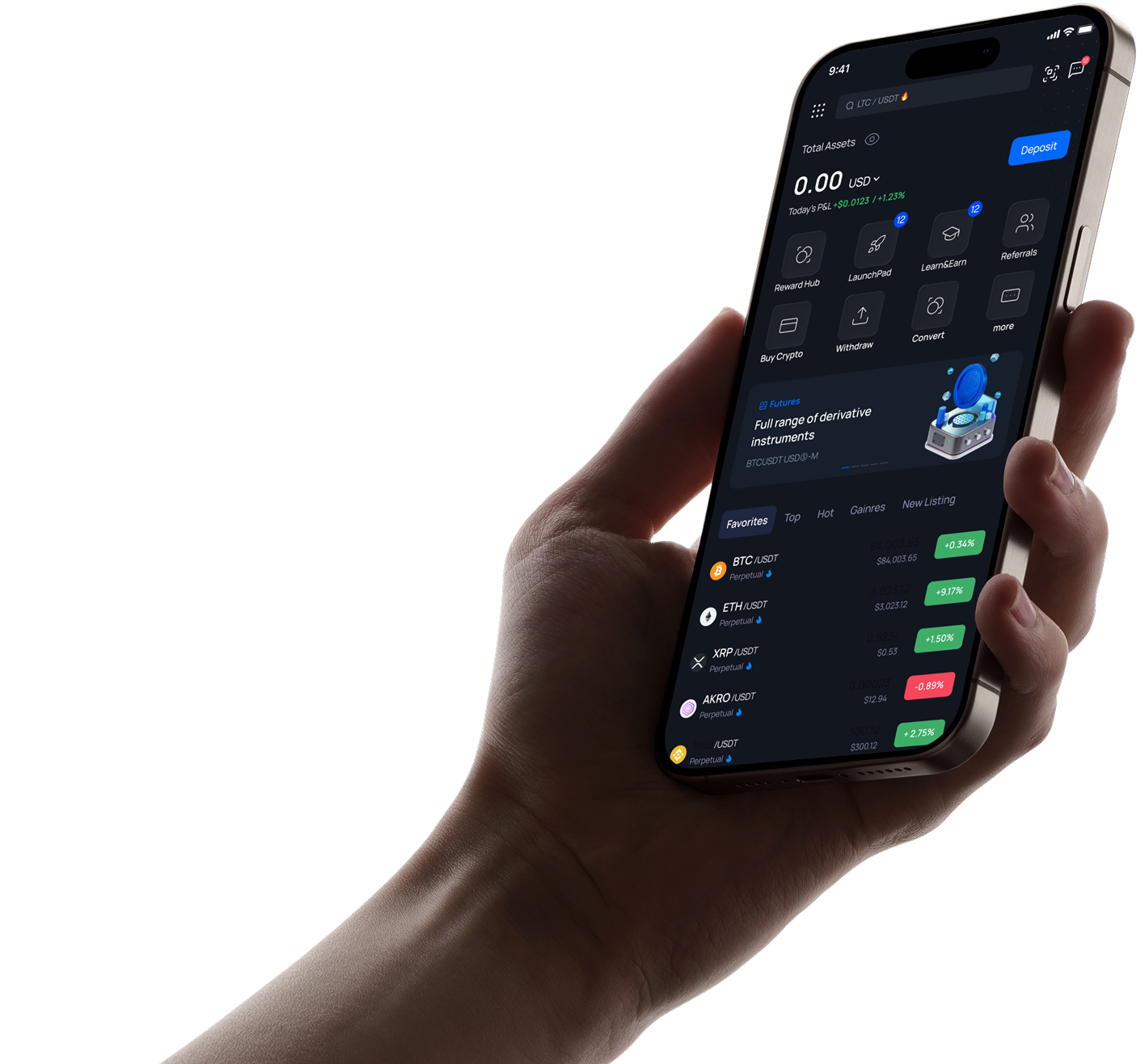
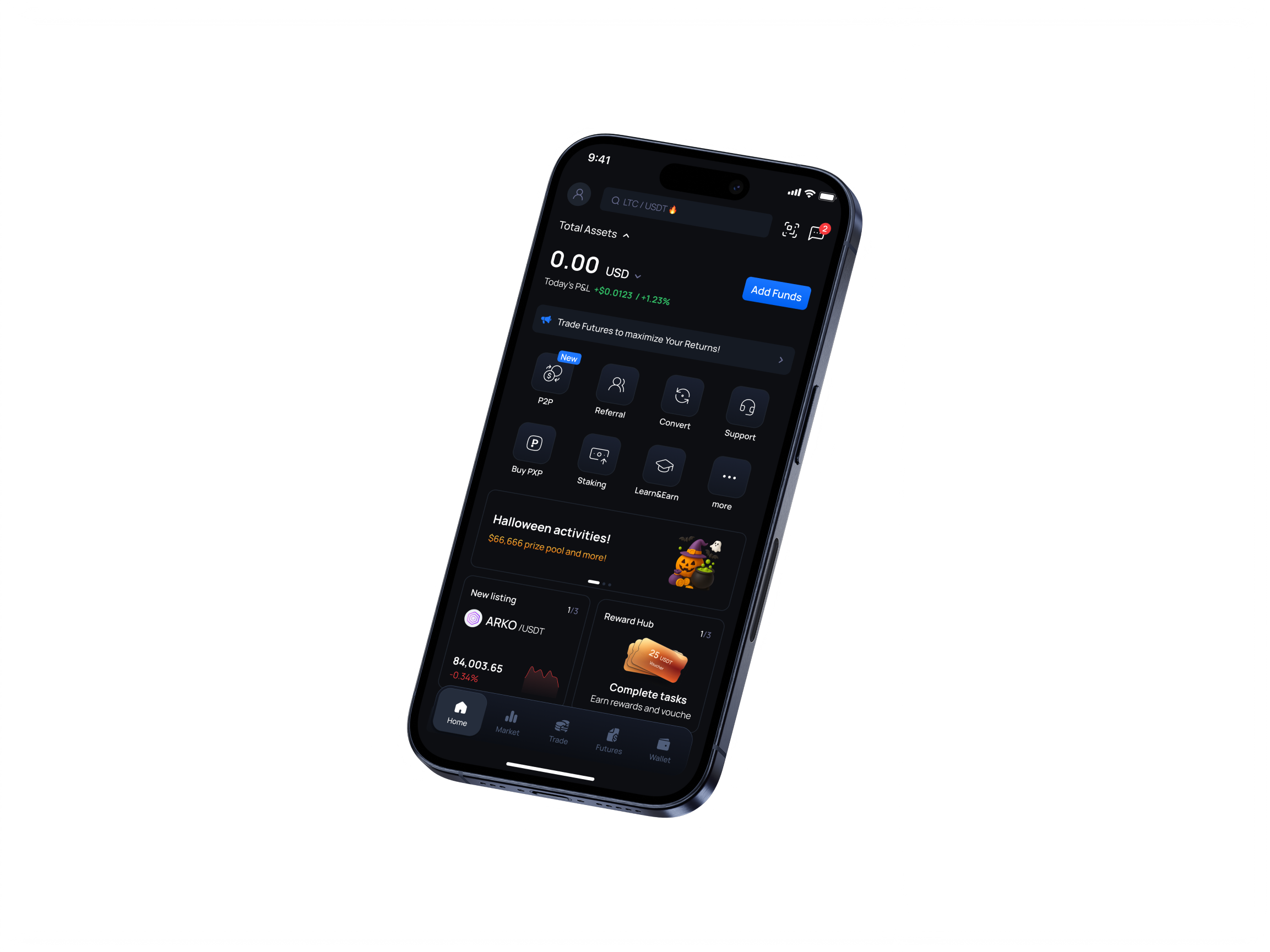
Tous les services crypto au même endroit
Inscrivez-vous maintenant pour commencer votre voyage crypto
Cryptomonnaies tendance
Tradez plus de 200 cryptomonnaies en temps réel.

Gardez vos cryptos en sécurité tout en profitant d'un revenu passif avec des plans APR personnalisables.
En savoir plusAméliorez vos connaissances en crypto et gagnez des récompenses en relevant des défis éducatifs.
En savoir plusObtenez un accès anticipé à de nouveaux projets et à des ventes de jetons exclusives directement sur la plateforme.
En savoir plus

Soutenu par la communauté. Vérifié par l'industrie.
Tradez plus de 200 cryptomonnaies en temps réel.FAQ
- Qu'est-ce que l'authentification à deux facteurs ?
Une fonction d'authentification à deux facteurs est une ressource supplémentaire qui vous permet de bénéficier d'une protection supplémentaire de l'accès à votre compte, même si quelqu'un connaît votre mot de passe. Lors de votre connexion à votre compte, il vous sera proposé de saisir deux informations : votre mot de passe et un code d'authentification à 6 chiffres. Un nouveau code d'authentification est généré toutes les 30 secondes par une application d'authentification. Nous recommandons fortement à tous nos utilisateurs d'activer cette fonctionnalité de sécurité pour empêcher tout accès non autorisé potentiel à vos comptes. Cette fonction est nécessaire pour assurer la sécurité de vos actifs, alors merci de prendre le temps de la mettre en place au plus vite !
- Que dois-je faire si j'ai perdu le code/la clé de l'authentification à deux facteurs ?
Vous devez fournir les données KYC, la connexion au compte, ainsi que les données des derniers dépôts et retraits en devises.
- How to enable Google 2FA
How to enable Google 2FA
Log into your account. In the Profile menu click on the «Security»

Choose Two-Factor Authentication section
You’ll see a 2FA enabling page with codes in two forms: usual and QR-code.
Attention: please, save this code in a safe place. This will allow you to recover your Google Authenticator if you lose access to your phone or app.

Open the 2FA app on your mobile device.
You can use a scanner or enter code manually to add temporary code for PointPay in your app.
Press on «+» in the bottom right corner:

Then tap on «Scan QR-code» or «Enter key manually». After it is done, a new 6-digits code appears in your app.
Put it in the 2FA enabling page:

You’ll get a notification that 2FA is enabled now.

Done, your account is secured now.
- Mon code PIN à quatre chiffres est perdu/incorrect, que puis-je faire ?
Vous pouvez supprimer l'application et la réinstaller avec un nouveau code à 4 chiffres.
- Comment passer le KYC en utilisant l'application Android ?
In order to complete KYC verification using Android App, please follow the next steps:
1) Log into your account. On the main app page please press on your profile name in the top left corner:

2) Tap on your Profile ID. You can also see the «Unverified» status there.

3) Press on «Verify» button in the verification section:

4) Choose the country of your current citizenship, use the drop list or filter by name.

Please, note that the United States of America (USA, United States) is shortened in the list and named just US.
5) Fill in your personal information:

Check the information – it must be filled correctly, as is in your documents:
- Name – right as in the document;
- Birth date – in dd/mm/yyyy format;
- Gender – is the same as indicated on your document, not according to your self-identification.
6) Fill the information about your address:

In case the address where you currently stay does not match your registration address, please take off the check box «The address matches the registration address» and fill it in as well.
7) Choose the document from the list, which you are going to use for verification of your identity.
International passport will be suitable for citizens of all countries.
You can also use other documents if they comply with international standards.; recommendations regarding a particular country can be obtained from customer support.

Requirements for the documents photo:
- A valid and unexpired passport, national ID, or driver’s license depending on your applicable country.
- Please make sure that the pictures of your documents are clear, hi-res, show all their corners and sides, and no information is covered.
- Please note that screenshots, photos of document copies, and images altered in photo redactors are not acceptable.
- It is recommended that you upload an ID with a photo that resembles your most recent facial features.
- If your ID document has a signature field, please make sure it is signed.
8) Please submit your selfie verification.

Here are some tips for you:
- please make sure that your face is good lighted directly from the front side and not from the sides
- follow the guidelines on the screen
Attention: Make sure there are no other people or photos with your face in the frame. It is preferable that the background be clear. It is also necessary to ensure a sufficient level of lighting.
Follow the tips on the screen.
9) After the selfie will be submitted, you'll see the message «In progress»

It might take some time to process your request so please wait a little for the result.
10) After your verification will be approved or disapproved, you’ll receive the result of processing the application via email.
The example of email with approve:

11) For some reasons application may be disapproved, in this case please, try again:

If you meet any difficulties, please contact our customer service: support@pointpay.io or use online-chat on the site.
- Comment passer le KYC via l'application iOS ?
To pass KYC verification via iOS app, please follow the steps mentioned below:
1) On the main app page please press on your profile name (placed in the top left corner of the screen)
2) Tap on your Profile ID.jpg)
3) Press on «Verify» button in the middle of the screen

4) Choose the country the citizenship of which you currently possess
.jpg)
Use the drop list or filter by name.
Please, note that the United States of America (USA, United States) is shortened in the list and named just US.
5) Fill in your personal information..jpg)
Check the information – it must be filled correctly, as is in your documents:
Name – right as in the document;
Birth date – in dd/mm/yyyy format;
Gender – is the same as indicated on your document, not according to your self-identification.
6) Enter your registration address.
In case the address where you currently stay does not match your registration address, please fill it in as well.
.jpg)
7) Choose the type of the document you will submit for KYC verification.

International passport will be suitable for citizens of all countries.
You can also use other documents if they comply with international standards.; recommendations regarding a particular country can be obtained from customer support.
Requirements for the documents photo:
- A valid and unexpired passport, national ID, or driver’s license depending on your applicable country.
- Please make sure that the pictures of your documents are clear, hi-res, show all their corners and sides, and no information is covered.
- Please note that screenshots, photos of document copies, and images altered in photo redactors are not acceptable.
- It is recommended that you upload an ID with a photo that resembles your most recent facial features.
If your ID document has a signature field, please make sure it is signed.
8) Please submit your selfie verification..jpg)
Here are some tips for you:
- please make sure that your face is good lighted directly from the front side and not from the sides
- follow the guidelines on the screen
Attention: Make sure there are no other people or photos with your face in the frame. It is preferable that the background be clear. It is also necessary to ensure a sufficient level of lighting.
Follow the tips on the screen.
After the selfie will be submitted, you'll see the message «Processing»
9) In several cases, it might take some time for our system to process your request..jpg)
10) After your verification will be approved or disapproved, you'll receive notification letter on your email.
Below you can see an example of KYC approval..jpg)
In case it will be denied, please contact our Customer Support Team via live chat or email support@pointpay.io
- Comment passer le KYC via l'interface web ?
1. Log into your account:

2. Then go to Dashboard menu:

Click on the «Verify» button at the top of the page.

3. Verification procedure will be started. First step is entering personal information, e.g. First name, Last name, gender, birth date. Please, fill all mandatory fields properly.
To choose your country please use the drop list or filter by name.
Please, note that the United States of America (USA, United States) is shortened in the list and named just US.
Check the information and click the «Next» button.
4. On the second step it is necessary to provide the information about your Residence and registration addresses.

In case if addresses not matches, take off tick box and fill necessary information:

Click «Next»
5. Choose the document from the drop list, which you are going to use for verification of your identity.

The list of available documents may be different depending on your country of residence. Usually we accept passports, ID cards, Driver’s licenses.
System will require uploading 1 or 2 pages of documents, for different document types.
Just follow the instructions.

Requirements for the documents photo:
A valid and unexpired passport, national ID, or driver’s license depending on your applicable country.
Please make sure that the pictures of your documents are clear, hi-res, show all their corners and sides, and no information is covered.
Please note that screenshots, photos of document copies, and images altered in photo redactors are not acceptable.
It is recommended that you upload an ID with a photo that resembles your most recent facial features.
If your ID document has a signature field, please make sure it is signed.6. Final step is face recognition. Please, grant your browser permission to use your device's camera. Otherwise you will not be able to complete this step.

Attention: Make sure there are no other people or photos with your face in the frame. It is also necessary to ensure a sufficient level of lighting.
Follow the tips on the screen.When each sector is done, it changes color to green. After completing this step your application will be accepted and you see the following notification:

Processing takes some time, so please wait for a while. You’ll receive the result of processing the application via email.
The example of email with approve:

For some reasons application may be disapproved, in this case please, try again:

If you meet any difficulties, please contact our customer service: support@pointpay.io or use online-chat on the site.
- KYC / AML / Demandes réglementaires
Nous garantissons le respect des dernières réglementations et des normes améliorées en matière de vérification KYC, introduites en Europe.
Notre système KYC actuel intègre des améliorations essentielles en matière de conformité des données et de sécurité technique.
La vérification KYC est requise pour les opérations suivantes :
vendre/acheter des crypto avec fiat
retraits vers des portefeuilles externes
virements internes au sein de la plateforme PointPay
Pour réussir la vérification KYC, il sera nécessaire de :
soumettre la photo d'un passeport international ou d'un autre document d'identité conforme aux normes internationales.
La liste des documents peut être diverse selon les pays.
Si vous avez des questions supplémentaires, n'hésitez pas à contacter notre équipe de support client, et ils se feront un plaisir de vous suggérer d'autres types de documents, qui peuvent être acceptés par les citoyens de votre pays.
passer la vérification du selfie.
Une fois le processus de vérification terminé avec succès, vous continuerez à profiter de la gamme complète de services offerts par la plateforme PointPay. - Comment désactiver 2FA
Connectez-vous à votre compte
Dans le menu Profil cliquez sur « Sécurité »
Choisissez la section Authentification à deux facteurs
Vous verrez le bouton 2FA « Désactiver ».
Ouvrez l'application 2FA sur votre appareil mobile.
Entrez maintenant le code de l'application dans le champ et cliquez sur « Désactiver »
Vous recevrez une notification indiquant que 2FA est désormais désactivé.
Cependant, nous vous recommandons fortement de toujours garder 2FA activé pour plus de sécurité de vos fonds. - Quels documents puis-je utiliser pour vérifier mon compte ?
Chers utilisateurs ! Nous avons remarqué que l’une des raisons les plus courantes d’échec des vérifications est l’utilisation de documents inappropriés. Ce matériel est destiné à simplifier le processus de vérification de votre compte. Nous avons compilé ci-dessous une liste actuelle des documents acceptés par le système de vérification, ventilés par pays.
Avant de commencer la vérification, recherchez votre pays par son nom et vous verrez exactement quels documents sont acceptables.Country (code): documents
Albania (AL): passport
Algeria (DZ): passport, ID card
Argentina (AR): passport, DNI
Armenia (AM): passport
Australia (AU): passport
Austria (AT): passport, residence permit
Azerbaijan (AZ): passport, ID card
Bahrain (BH): passport
Bangladesh (BD): passport, ID card (see example)
Belarus (BY): passport
Belgium (BE): passport, ID card, residence permit
Benin (BJ): passport, ID card
Bosnia and Herzegovina (BA): passport
Brazil (BR): passport, ID card (examples of supported types: doc 1 / doc 2 / doc 3; the document must be issued no more than 10 years ago and must contain an CPF code), residence permit
Brunei Darussalam (BN): passport
Bulgaria (BG): passport, ID card
Burkina Faso (BF): passport, ID card
Butane (BT): passport
Cambodia (KH): passport
Cameroon (CM): passport
Canada (CA): passport, driver’s license
Chad (TD): passport
Chile (CL): passport
China (CN): passport
Colombia (CO): passport, temporary protection permit
Croatia (HR): passport, ID card
Cuba (CU): passport
Czech (CZ): passport, ID card
Denmark (DK): passport
Dominica (DM): passport
Dominican Republic (DO): passport, ID card
Ecuador (EC): passport
Egypt (EG): passport
Estonia (EE): passport, ID card
Finland (FI): passport
France (FR): passport, ID card, residence permit
Georgia (GE): passport, ID card
Germany (DE): passport, ID card, residence permit
Ghana (GH): passport, ID card
Great Britain (GB): passport, driver’s license
Greece (GR): passport, ID card (new type: front side / back side examples), residence permit
Grenada (GD): passport
Haiti (HT): passport
Honduras (HN): passport, ID card
Hong Kong (HK): passport
Hungary (HU): passport, ID card
India (IN): passport
Indonesia (ID): passport
Ireland (IE): passport, residence permit
Israel (IL): passport
Italy (IT): passport, ID card example of supported type: front side / back side)
Ivory Coast (CI): passport, ID card
Jamaica (JM): passport
Japan (JP): passport
Jordan (JO): passport, ID card
Kazakhstan (KZ): passport, ID card
Kenya (KE): passport, ID card
Kuwait (KW): passport, ID card
Kyrgyzstan (KG): passport, ID card
Latvia (LV): passport, ID card
Lebanon (LB): passport
Liberia (LR): passport
Lithuania (LT): passport
Luxembourg (LU): passport
Macedonia (MK): passport
Malaysia (MY): passport
Maldives (MV): passport
Mali (ML): passport
Malta (MT): passport, residence card/document
Mexico (MX): passport, voter’s card
Monaco (MC): passport, ID card
Mongolia (MN): passport
Montenegro (ME): passport, ID card
Morocco (MA): passport, ID card
Mozambique (MZ): passport
Namibia (NA): passport
Nepal (NP): passport
Netherlands (NL): passport, ID card
Nigeria (NG): passport, driver’s license
Norway (NO): passport, ID card
Oman (OM): passport, residence card/document
Palestine (PS): passport
Paraguay (PY): passport
Peru (PE): passport, DNI
Philippines (PH): passport, ID card (new type: example)
Poland (PL): passport, ID card
Portugal (PT): passport, citizen card
Qatar (QA): passport
RF (RU): passport
Romania (RO): passport, ID card
Salvador (SV): passport, ID card
Saudi Arabia (SA): passport, ID card
Senegal (SN): passport, ID card
Serbia (RS): passport
Singapore (SG): passport
Slovakia (SK): passport, ID card
Slovenia (SI): passport, ID card
South Africa (ZA): passport, ID card
South Korea (KR): passport
Spain (ES): passport, DNI, residence permit
Sri Lanka (LK): passport
Suriname (SR): passport
Sweden (SE): passport
Switzerland (CH): passport, ID card, residence permit
Tajikistan (TJ): passport
Tanzania (TZ): passport
Thailand (TH): passport
Togo (TG): passport, ID card
Trinidad and Tobago (TT): passport
Tunisia (TN): passport
Türkiye (TR): passport, ID card
Uganda (UG): passport, ID card
Ukraine (UA): passport, ID card
United Arab Emirates (AE): passport, ID card
USA (US): passport, ID card
Uzbekistan (UZ): passport
Venezuela (VE): passport
Vietnam (VN): passport, ID card
Zimbabwe (ZW): passport


Trustpilot